Back to Maintenance Manager for Manufacturing Main Menu
Adding and Managing Assets
The Assets feature allows Administrators and Technicians to create, view, update, duplicate, and manage assets. Assets can be organized and maintained with details such as asset type, location, serial number, parent assets,
child assets, and attachments.
Adding an Asset
-
Navigate to the
 (Assets) page.
 -
Click the + Add Asset Button
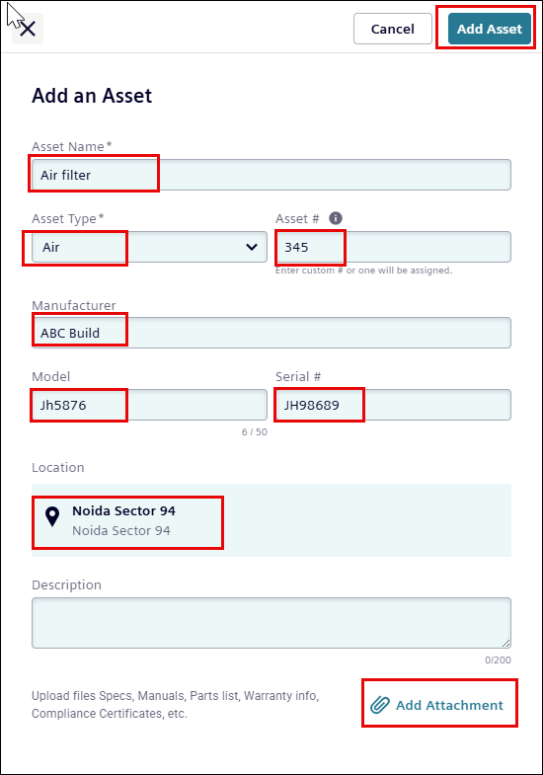
The Add an Asset page appears.
-
Enter an Asset Name.
-
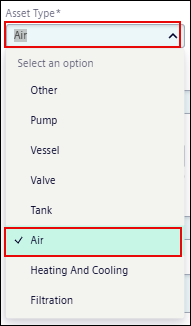
Select an Asset Type from its drop-down list.
-
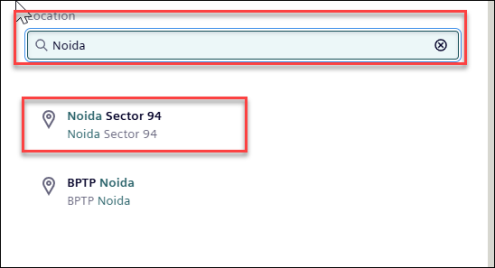
Enter and select the Location from the list.
-
Additionally, fill the optional fields such as:
-
Asset#
-
Model
-
Serial Number
-
Description
-
Attachments
-
NOTE
* The Asset # field is an optional field. If no asset number is provided, the system automatically generates one when the asset is created.
* Fields marked with asterisk (*) are required fields.
-
Click the Add Asset button.
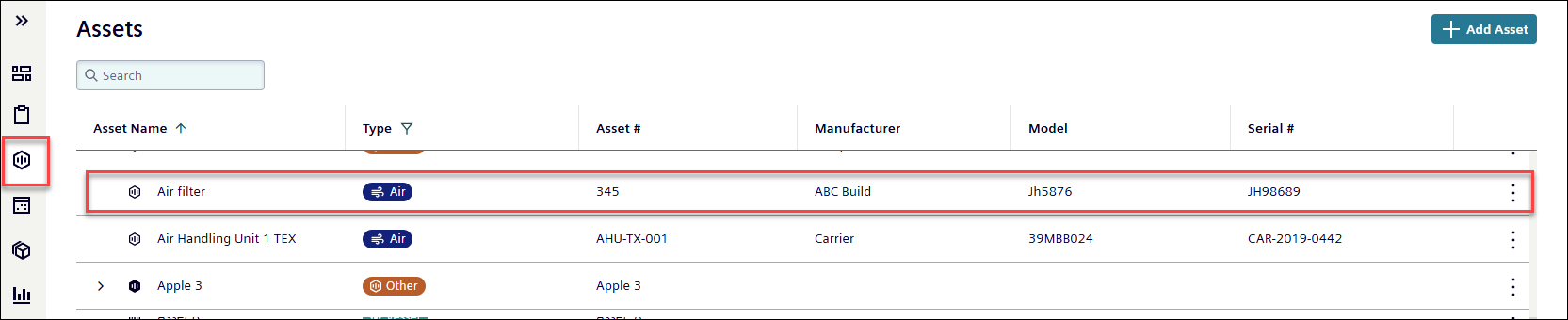
Once an Asset is added successfully; it appears in the asset list.
Managing Assets
Searching an Asset
-
In the search box at the upper-left corner of the page, enter the Asset name or Asset #.
-
Review the search results displayed in the asset list.

Updating Asset’s Details
-
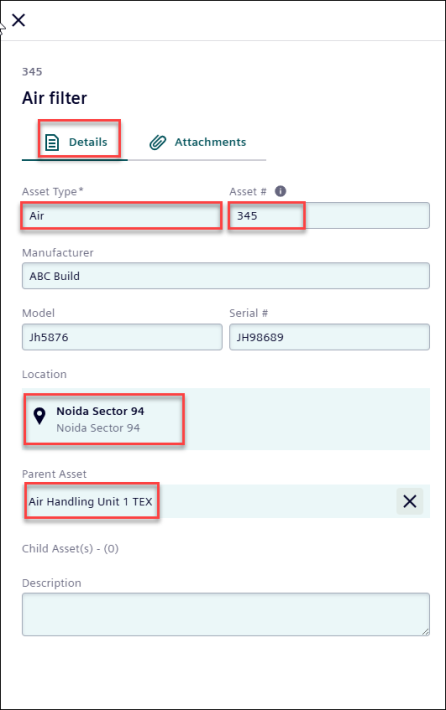
Select an asset from the list (for example, ‘Air Filter’).
-
Under the Details tab, update any of the following fields, as required:
-
Asset Type
-
Location
-
Parent Asset
-
Child Asset(s)
-
-
For editable fields (for example, Asset #, Serial #, Description)
-
Enter or update the value.
-
Click
 to apply the change or click
  to discard it.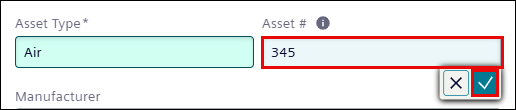
NOTE The Asset # field is optional. If no asset number is provided, the system automatically generates one when the asset is created.
-
Upon, making the change a ‘successfully updated’ pop-up message appears.

-
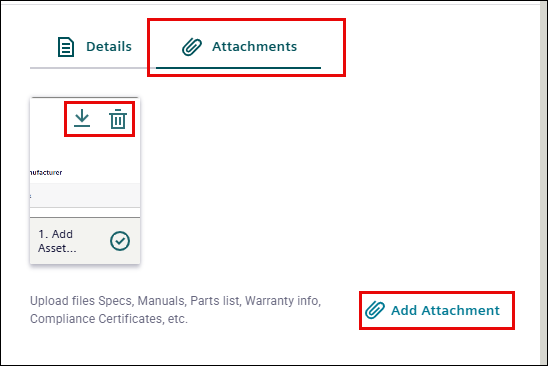
Go to the Attachment tab, click
 to remove an existing attachment.
 -
Click
 to download an attachment.
 -
Click Add Attachment to upload a new file.
Duplicating An Asset
-
In the asset row, click the
 icon.
icon.
-
Click Duplicate.
The Duplicate Asset page appears.
-
Review the pre-populated asset details.
NOTE The new duplicate asset page is populated with the details of the original asset.
-
Additionally, update any fields as required.
-
Click the Add Asset button at the upper right corner of the page.
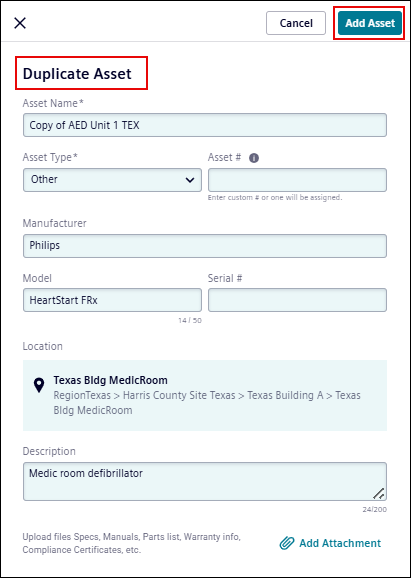
A duplicate asset is created with the prefix Copy of added to the original asset name.

NOTE
* If an asset number is not specified, the system automatically generates one when the asset is created.
* Update the asset details as needed before saving the duplicate asset.
